Sunday, July 26, 2015

networking - How can email possibly be routed to the right place with no to: address?


I'm no novice on networking technology, but one thing I don't really know much about in detail is email and headers. How does email work SPECIFICALLY?


I'm getting spam in my hotmail inbox when I've made painful attempts to not give out my actual email. I use my own domain name to forward email to my inbox using several aliases. Yet now I'm getting spam with no address in the to: line, or also "undisclosed recipients". Looking at the headers is of no help whatsoever.


So from a technical standpoint, I have to wonder... if I send an email to a certain address in my personal domain and it gets forwarded to my hotmail account, how does hotmail know what inbox to dump the message in if that address is not listed in the headers?


Answer


This is a fairly common source of confusion. There are two places in a standard email transmission where the to: address is specified - once in the "envelope" and once in the visible email headers.


The envelope recipient address is specified during the SMTP transaction, and you will never see the value that is set there. It is solely used by the SMTP server to route the message.


The to: header in the email itself is optional, which is what you're seeing in your hotmail account.


Here's the flow of a standard SMTP transaction:


erik@host:~$ telnet localhost 25
Trying 127.0.0.1...
Connected to localhost.
Escape character is '^]'.
220 localhost ESMTP Postfix (Ubuntu)
helo example.com
250 localhost

mail from: erik@example.com
250 2.1.0 Ok
rcpt to: jimbob@example.com
250 2.1.5 Ok
data
354 End data with .
To: foobar@example.com
Subject: This is the subject

This is the message body.

.
250 2.0.0 Ok: queued as 19CE221FDA


The address specified after rcpt to: is the the envelope recipient address. The address specified in the to: line after data is what shows up in your email client. These two values do not have to match, and as mentioned earlier, the to: in the data portion is optional.


partitioning - MBR recovery - Corrupted MBR after it changed to dynamic & testdisk gives up . No backup sector found

I had a Windows 7 installation on my 1TB SSD laptop with 4 primary partitions. I wanted to install Lubuntu Linux but the process failed with an error which kind of said:


cannot write MBR


It gave me an option to put an MBR somewhere else or to boot without MBR. None of these options worked and it became a useless install. After this failed dual boot attempt, Windows would give a BSOD wit Code 007 ending - translated to inaccessible boot device. That is a huge NTFS partition and I don't think I have any other media to back it up before formatting it.


My only option is somehow rebuilding the old MBR. Hence I started creating a whole bunch of live USB boot environments including Super GRUB Disk and MiniTool Partition Editor Live CD, but none of this could ever help me recover my lost MBR.


Win PE 4.0 reported the partition as bad disc and the latest version did not even have an option for MBR. I managed to create a live USB with Testdisk Running on Ubuntu. Whatever partition was seen as HPFS on quick search was written in the MBR and after this the disc is totally unreadable. Earlier I could see my data through Linux and now I can see nothing.


Here are my questions:


  • When some data could be read (but Windows would not boot) the MBR was shown as dynamic MBR. As far as I know dynamic MBR is a Windows concept and my Linux attempt would not have converted it. While installing Linux I tried to delete 2 primary partitions which I found to be not really useful (I backed up their data first). So I am not sure what created the dynamic MBR.


    Did my dual install convert those basic MBR to dynamic MBR? How did that happen?


  • Here is a screenshot of my deep search attempt with TestDisk which is still in progress. I can see 4 NTFS partitions and one of these two system partitions should be the original MBR. When I tried to write both these system partitions (after stopping the deep search momentarily) I got an error like "partition not found". The file system utility showed me that there is no backup sector and that may be the reason why it cannot be read.


    What other Resorts do I have, other than doing a plain format and then using some recovery tool to recover all my lost data? I am not even sure I will recover the folder names.


    What other options should I be trying to restore my old MBR so Windows can boot?


    Testdisk screenshot


Update
as of last I managed to create a live USB w/ W7
I used AOMEI Partition assistant 6.0 and on deeper search I can see the 909 gb partition - it wont let me select it for recovery. I am sorry if my earlier Q was not clear. I referred to restoring an MBR from a partition . What happened earlier - superficial search revealed all old partitions but NOT this one and the later partitions showed up on Deep search & I can select Other partitions for recovery but for this one. It wont let me select the partition I want
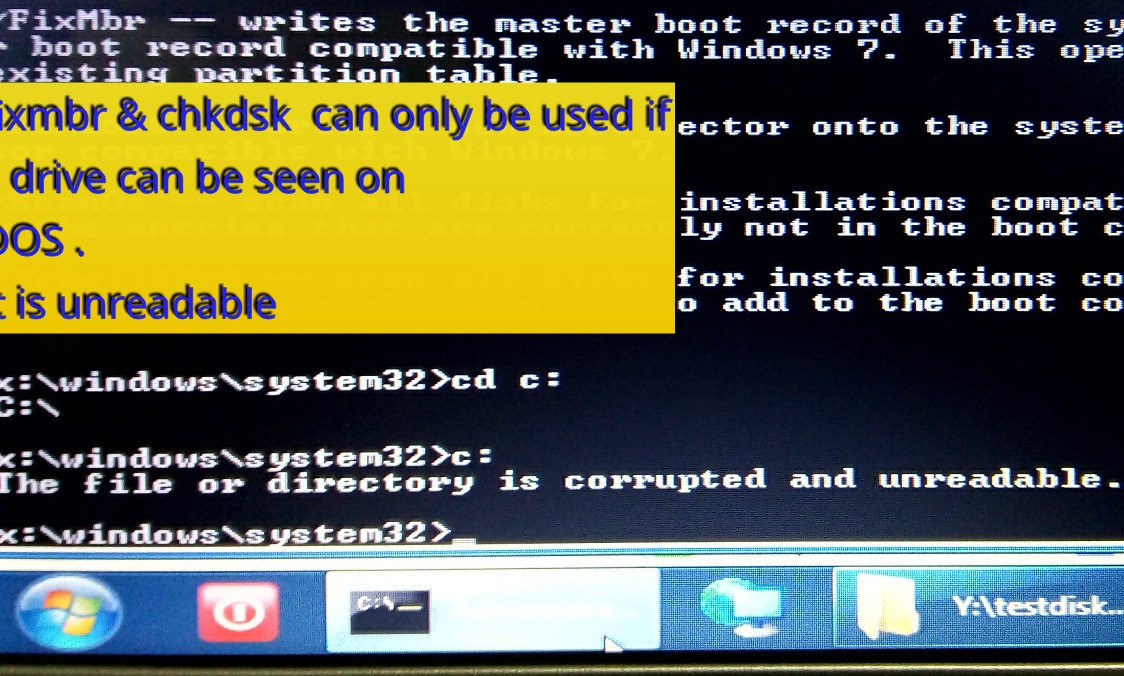
Here are some more screen shots
testdisk deep search
windows live usb @ dos prompt
So in summary all that happened is


  • 4 primary windows 7 partition -->
    wanted to install Linux so I deleted 2 non bootable partitions after backing them up

  • ended up with BSOD ( inaccessible boot device ) and noticed that some windows partitions showed up as Dynamic MBR (using Live USB Linux,gparted )

  • Use standard testdisk procedure to write MBR from the superficial NTFS-HDFS partition. this is where I screwed up . Hindsight I should have really done a deep search and caught the 901gb partition to write MBR. I am not sure if I can undo this action

  • after this - life gets worse. I am on a ventilator ! Now C is unreadable by windows and linux both and testdisk cannot list file ( see screenshots ) and I have been using a series of live USB's with some recovery s/w but no luck. ALL I want is to recreate that 901gb partition and the boot partition and put the MBR on the latter so I can get my windows 7 back again


enter image description here

Saturday, July 25, 2015

Windows Anytime Upgrade license key not working


I have Windows 7 Home Premium 64-bit on my Sony Vaio laptop. It came installed on the laptop, I have not reinstalled or done anything else to it.


I have just tried to upgrade to Ultimate via the Anytime Upgrade tool. I followed the prompts and purchsed the online license key for Ultimate, but now when I try to apply the upgrade, I get an error:


Enter a different upgrade key. The upgrade key you entered is for an edition of Windows that does not work with Windows Anytime Upgrade.


What have I done wrong? All I did was follow the prompts from within Windows itself. I am in the UK, the laptop was bought directly from Sony in the UK, so as far as I can tell I am definitely eligible for online purchase of an Anytime Upgrade license key.


Answer


It turns out that the upgrade to Ultimate seems to have actually worked, which is why Anytime Upgrade complains that my license isn't valid for further upgrades.


I don't know why the initial upgrade reported a failure, but anyway it all seems to be working fine now.


windows 7 - USB Storage is Write-Protected


I have a Raidon GR3630-2S-SB2+ External RAID enclosure that I've just hooked into my system. For some reason, it's coming up as write-protected.


The issue seems to have to do with my Windows setup, because I'm able to write to the drives when I plug the enclosure into another system running the same version of Windows (Windows 7 Enterprise x64).


For both of my machines I have administrative access, and "Full Control" is granted to Administrators in the Security tab of the drive properties.


Does anyone know how to enable write access to an external drive like this? Are there any other steps I could take to troubleshoot the problem? Or is there any other info that you would need?


Thanks in advance!


Answer


Put this in a .bat file and execute it:


cd\
reg add "HKLM\System\CurrentControlSet\Control\StorageDevicePolicies" /t Reg_dword /v WriteProtect /f /d 0

ns record - After name server change, DNS queries on and off

I migrated the domain www.pantego.com to a different name server. We were using the Enom registrar and their default name servers, but I migrated them to AWS Route 53. I know all records were copied over, but the domain seems to go up and down at random. Sometimes the website works, and sometimes it doesn't. This corresponds to when nslookup works and doesn't work. The previous TTL was two days and it has not been that long yet, however, why does DNS go up and down for my site? Other users report this too. Any help is appreciated.


Edit:


Dig always works - nslookup (and therefore ping and http requests) don't always work. I did notice that pinging ns1.pantego.com and ns2.pantego.com return the old IPs, but nothing should be using those addresses anyways? Both the old name server and the new name server have the same settings. I will remove the old one when the TTL expires.

Windows 7 Admin user - batch file always runs as Administrator


This question has been edited based on necessary clarification as received thru below comments.


I have a simple bat file taken from https://stackoverflow.com/questions/4051883/batch-script-how-to-check-for-admin-rights. It tests if the bat script was invoked as a User by simply double-clicking on it or it was run as ‘Run as Administrator’. I have tested it and it works just fine on my Windows 8.1 Home 64-bit laptop under an administrator level user. When I double-click, it indicates that it’s not been run from an Elevated command prompt and says otherwise when ‘Run as Administrator’.


From the below comments it’s understood that the lowest privilege level for Administrator is a User and selecting ‘Run as Administrator’ elevate it to Administrator.


However on my Windows 7 Ultimate 32-bit it’s not behaving the same way! When I just double click on it, it’s still running as Administrator. Is this a security issue and is there any way to set it to default User level?


In my Control Panel UAC is turned off. Also note that I am not creating/running any shortcut set it to always 'Run as Administrator'


On my Windows 7, I would like it to Run as User when I double-click and only as Admin when ‘Run as Administrator’ is invoked.


Note that the script is out of scope for discussion, however just pasting it below for reference.


@echo off
openfiles > NUL 2>&1
if NOT %ERRORLEVEL% EQU 0 goto NotAdmin
echo Hello from elevated command prompt
goto End
:NotAdmin
echo This command prompt is NOT ELEVATED
:End
pause
exit

Answer


The situation you describe is expected behavior when logged on with the built-in Administrator account, even if you have User Account Control (UAC) enabled.


Starting with Windows Vista (and as of this writing, including Windows 10) in the default configuration, applications run with the built-in Administrator account are executed with full administrative privileges. This is because of the default setting of the "Admin Approval Mode" security policy is Disabled:


The User Account Control: Admin Approval Mode for the built-in
Administrator account policy setting controls the behavior of Admin
Approval Mode for the built-in Administrator account.


The options are:


  • Enabled. The built-in Administrator account uses Admin Approval Mode. By default, any operation that requires elevation of privilege
    will prompt the user to approve the operation.


  • Disabled. (Default) The built-in Administrator account runs all applications with full administrative privilege.


How to Change the Admin Approval Mode Setting


If you have the Professional/Business/Enterprise/Ultimate edition of Windows: You can change this setting by editing local Group Policy:


  1. Click Start, type secpol.msc in the Search programs and files box, and then press ENTER.


  2. If the User Account Control dialog box appears, confirm that the action it displays is what you want, and then click Yes.


  3. In the console tree, expand Local Policies, and then click Security Options.


  4. In the details pane, scroll down and double-click the Group Policy setting User Account Control: Admin Approval Mode for the built-in Administrator account


  5. On the Properties page, make your selection, and then click OK.


If you have the Home or Starter edition of Windows: You don't have access to secpol.msc and therefore cannot edit the Local Security Policy. However, this answer points us to another fortunately, still accessible link at askvg.com that explains how to change the setting in the Registry:


  1. Type regedit in RUN or Start Menu search box and press Enter. It'll open Registry Editor. Now go to following key:


    HKEY_LOCAL_MACHINE\SOFTWARE\Microsoft\Windows\CurrentVersion\Policies


  2. Under Policies key look for a key with the name "System". If it's not present then create it by right-click on Policies key and
    select "New -> Key" and give it name "System".


  3. Now select System key and in right-side pane create a new DWORD value to apply the desired tweak as mentioned in following list:


User Account Control: Admin Approval Mode for the Built-in
Administrator account


DWORD Value - FilterAdministratorToken


To Enable - 1
To Disable - 0


Ubuntu 12.04 install Kafka [error] File name too long


I'm trying to install kafka through their instructions on Ubuntu 12.04 and getting the following error


[error] File name too long


when I run


$ ./sbt package


whole error message:


[info] Building project Kafka 0.7.2 against Scala 2.8.0
[info] using KafkaProject with sbt 0.7.5 and Scala 2.7.7
[info]
[info] == core-kafka / compile ==
[info] Source analysis: 142 new/modified, 0 indirectly invalidated, 0 removed.

[info] Compiling main sources...
[error] File name too long
[error] one error found
[info] == core-kafka / compile ==
[error] Error running compile: Compilation failed
[info]
[info] Total time: 17 s, completed Mar 26, 2013 1:36:36 PM
[info]
[info] Total session time: 17 s, completed Mar 26, 2013 1:36:36 PM
[error] Error during build.


I cam across this explanation saying that they file system is encrypted and need to mount another point and install from there. Not too sure how to do that, or if this is the correct procedure. Hope someone can help, Thanks.


Answer


Copy the kafka tgz file to a directory in a different filesystem.
You can list the filesytems using the df command. The directory you attempted to install kafka will probably be in the / or /home filesystem.
Then repeat the installation procedure.


As the document mentions, it's an ugly workaround.
The alternative is to re-install ubuntu without the encrypted filesystem.


linux - How to SSH to ec2 instance in VPC private subnet via NAT server

I have created a VPC in aws with a public subnet and a private subnet. The private subnet does not have direct access to external network. S...